
When a website developer asks a client for FTP access, hosting access or WordPress access, it can sound like they are asking for three different passwords to do the same job. After all, they all relate to the same website, so why are there different logins?
The answer is simple: each type of access provides control over a different part of your website.
Understanding these differences makes it easier for business owners to work with developers, for sales teams to explain technical requirements, and for client service teams to coordinate website updates, troubleshoot problems and manage handovers.
It also helps everyone understand an important principle: giving someone access to your website does not necessarily mean giving them access to everything connected to it.
In this guide, we’ll explain what FTP access, Hosting access and WordPress access mean, what you can do with each one, when a developer might need it, and how to manage access securely when working with a website development agency.
1. Why Are There Different Types of Website Access?
A modern website consists of several interconnected components. These include the files that make up the website, the server where it is hosted, the domain name that visitors use to find it, and the content management system that allows you to manage its pages and functionality.
Although these components work together, they serve different purposes and are often managed through separate systems.
For example, imagine that a client asks their website development agency to update a contact page. The developer might only need WordPress access to make that change.
However, if the website displays an error because a theme file is broken, the developer might need FTP access to investigate or repair the underlying files.
If the problem relates to the website’s hosting configuration, email setup or domain records, the developer might instead need access to the hosting account or the relevant domain management platform.
These are different tasks, requiring different levels of access.
The three main types of website access

FTP access — access to website files
Allows authorised users to connect to a website’s file storage to upload, download, edit or manage files, depending on their permissions.

Hosting access — access to the hosting environment
Allows authorised users to manage available hosting services and settings, which may include databases, backups, email, security certificates and domain-related configuration.

WordPress access — access to the website dashboard
Allows authorised users to manage website content, appearance, plugins, users and other functions according to their WordPress role and permissions.
One important distinction: hosting access and domain access are not always the same thing. Some providers manage both through one account, while others use separate systems. Throughout this article, hosting access refers primarily to the hosting control panel and its associated services.
2. What Is FTP Access?
FTP stands for File Transfer Protocol. It is a method of connecting to a server to transfer files between a computer and a website’s hosting environment.
In practical terms, FTP access allows a developer to work directly with the files that make up a website, rather than making changes through the website’s normal administration dashboard.
Developers commonly use an FTP client, such as FileZilla, to connect to the server. They enter the connection details provided by the hosting provider or website administrator, and the software displays the folders and files they are permitted to access.
Secure alternatives, particularly SFTP (SSH File Transfer Protocol), are commonly preferred because they encrypt the connection. Although their names are similar, FTP and SFTP are technically different protocols.
What can a developer do with FTP access?
Depending on the permissions granted, FTP or SFTP access may allow a developer to:
- Upload website files, images, scripts and other resources.
- Download existing files for inspection or backup.
- Edit or replace specific website files.
- Create, rename or delete files and folders.
- Investigate problems involving themes, plugins or custom code.
- Restore individual files when a suitable backup is available.
For example, suppose a website update causes a critical error, and the WordPress dashboard is no longer accessible. A developer may use FTP or SFTP to rename a problematic plugin folder or restore a known-good file, helping to bring the website back online.
This is particularly useful when the normal dashboard is unavailable.
What can’t you do with FTP access?
FTP access does not automatically provide access to the website’s WordPress dashboard or hosting control panel.
Someone with FTP access alone generally cannot use it to:
- Manage the hosting subscription or billing account.
- Change domain registration details or DNS records.
- Manage hosting email accounts through the hosting control panel.
- Access the WordPress dashboard simply by connecting through FTP.
- Change WordPress content through the normal page editor.
There are exceptions to the general boundaries. For example, a developer with write access to WordPress configuration files may be able to affect the site’s configuration or gain access through other means. File access can therefore carry significant security risks, even without a hosting login.
When is FTP access useful?
FTP access is particularly useful for technical troubleshooting, manual file transfers, custom development and situations where the WordPress dashboard cannot be reached.
For routine changes to text, images or pages, WordPress access is usually the more appropriate starting point.
3. What Is Hosting Access?
Hosting access refers to access to the account or control panel used to manage the server environment where a website operates.
When you register a domain name and activate a hosting package with your service provider, this is the access they provide you for your email setup and website files.
Web hosting providers supply the infrastructure that stores and serves website files, runs the necessary software and supports services such as databases and, where included, email.
Hosting access is often provided through a control panel such as cPanel, Plesk or a provider’s own dashboard. Some hosting platforms use other management systems, so the available features vary by provider and hosting package.
What can you do with hosting access?
Depending on the provider, account type and permissions, hosting access may allow a user to:
- Manage hosting plans and account settings.
- Configure domains, subdomains and redirects.
- Manage DNS records, where DNS management is included.
- Create and manage databases.
- Create or manage email accounts.
- Install or renew SSL/TLS certificates.
- Access server logs, backups and website statistics.
- Manage security settings and certain server configurations.
- Create FTP/SFTP accounts or adjust file permissions.
For example, imagine that a business owner wants to create a new email address for an employee using the company’s domain name.
If the email service is managed through the website’s hosting provider, someone with the appropriate hosting or email administration permissions may need to create that mailbox.
Similarly, if a website needs a database restored, a hosting administrator may need to access the relevant backup and database tools.
However, not every hosting account provides every feature. Some providers separate email, DNS, databases and backups into different dashboards, while others restrict access to certain functions on managed hosting plans.
What can’t you do with hosting access?
Hosting access does not necessarily give someone full access to the WordPress administration dashboard.
A developer may be able to manage the server environment but still need separate WordPress credentials to edit pages, manage users or change website settings through the WordPress interface.
Hosting access also does not automatically mean that someone owns the domain name. Domain registration and DNS management may be handled by a different provider or account.
When is hosting access useful?
Hosting access is commonly required when a task involves server configuration, databases, hosting-level backups, email services, SSL certificates or domain-related settings managed through the hosting platform.
Because hosting accounts can control several important services, granting full hosting access should be considered carefully.
4. What Is WordPress Access?
WordPress access refers to permission to log in to a website’s WordPress administration dashboard, commonly known as the WordPress admin or wp-admin area.
This is the interface many website owners and marketing teams use to manage the content and functionality of their websites.
Unlike FTP access, which works with files, WordPress access allows users to work through the website’s content management system.
What can you do with WordPress access?
The available actions depend on the user’s WordPress role and any additional permissions configured on the site.
A user with the Administrator role on a typical WordPress installation can generally:
- Create, edit and publish pages and blog posts.
- Upload and manage images and other media.
- Change menus and website navigation.
- Manage themes and plugins.
- Configure all website settings.
- Create users and assign roles.
- Manage comments and other supported website features.
For example, a marketing team might ask a developer to add a new service page to a business website.
Once the page structure and design have been established, the marketing team could use WordPress access to update the page copy, add images, publish blog posts and maintain other content without needing direct access to the website’s files.
This separation allows a business to manage its everyday content while relying on its development agency for more technical work.
Are all WordPress users administrators?
No. WordPress supports different user roles, and each role provides a different set of permissions.
| WordPress role | Typical purpose |
|---|---|
| Administrator | Manages most or all website functions, including users, plugins and settings. |
| Editor | Manages and publishes content, including content created by other users. |
| Author | Writes and publishes their own posts. |
| Contributor | Writes posts but cannot publish them independently by default. |
| Subscriber | Has limited access, generally to their own profile and permitted member features. |
WordPress plugins and custom development can introduce additional roles or change these permissions.
For most business owners who only need to update website content, an Administrator account may provide more access than necessary. An Editor account may be more suited, depending on the tasks they need to perform.
What can’t you do with WordPress access alone?
WordPress access does not automatically provide access to the hosting provider’s control panel or domain registrar.
For example, a WordPress Administrator can usually install plugins if the site permits it, but cannot necessarily change DNS records, manage the hosting subscription or create email mailboxes through the hosting control panel.
Likewise, a WordPress Administrator may be unable to access the dashboard if a server problem prevents the site from loading.
A WordPress Administrator may be unable to troubleshoot website issues in-depth and does not have access to the server error logs.
When is WordPress access useful?
WordPress access is generally the right starting point for content updates, page creation, blog publishing, website appearance changes and many plugin-related tasks.
It is often the most practical access level for marketing teams, content editors and clients who manage their own website content.
5. FTP vs Hosting vs WordPress Access: A Practical Comparison
The easiest way to explain the differences is to look at the task that needs to be completed.
| Task | Most relevant access |
|---|---|
| Update a page’s text or images | WordPress |
| Publish a blog article | WordPress |
| Install a WordPress plugin | WordPress Administrator, subject to site restrictions |
| Upload or replace a website file directly | FTP/SFTP |
| Investigate a broken theme file | FTP/SFTP, potentially with hosting access |
| Create a hosting email mailbox | Hosting or email administration |
| Change DNS records | Domain or DNS management access |
| Restore a hosting-level database backup | Hosting or database administration |
| Change a domain registration or renewal | Domain registrar account |
| Fix a problem that prevents WordPress from loading | Potentially FTP/SFTP and hosting access |
These are typical examples rather than absolute rules. Hosting platforms, WordPress configurations and developer workflows vary, so the correct access depends on the actual task.
A developer may also need more than one type of access to complete a job. For example, diagnosing a failed WordPress update might require dashboard access to inspect the error, FTP access to investigate files, and hosting access to review server logs.
The important point is to request access based on the work required, rather than automatically requesting every available login.
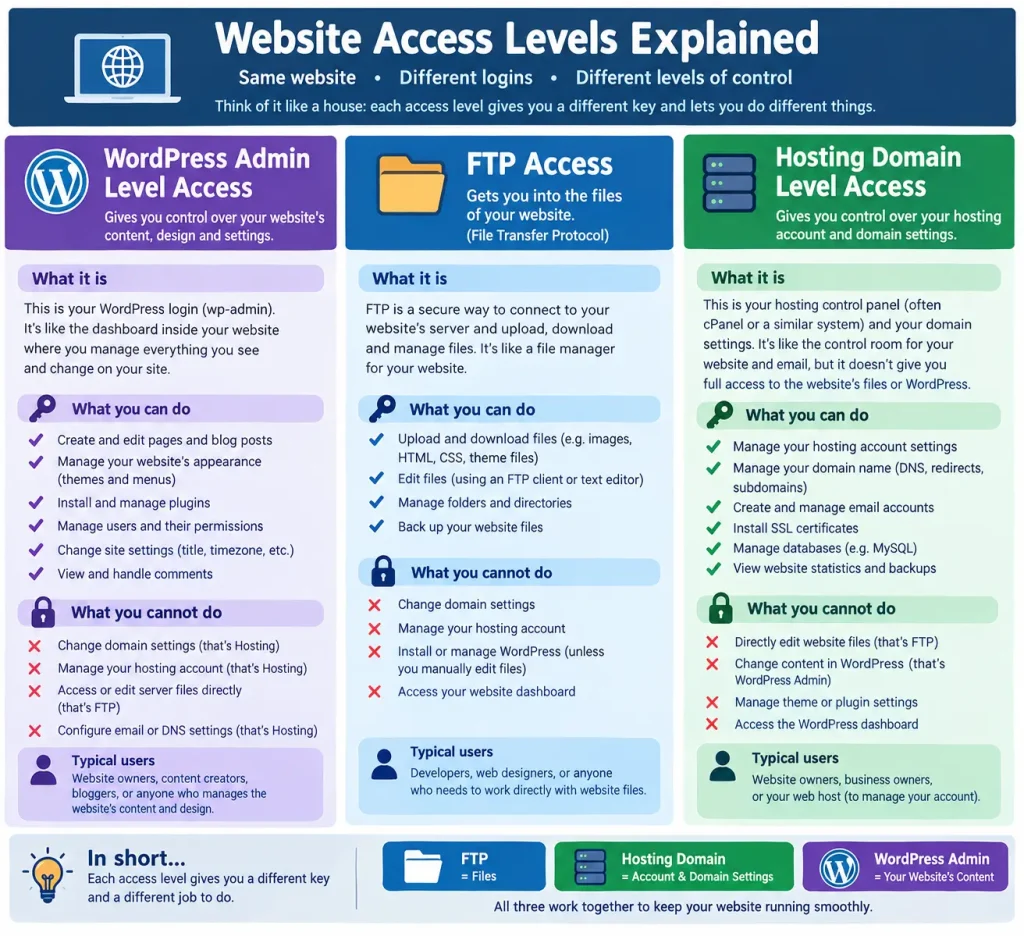
6. Why Do Website Developers Sometimes Ask for All Three?
Business owners sometimes wonder why their website development agency needs several different logins for the same website.
The reason is that a website problem does not always originate in the part of the website where the problem becomes visible.
Consider three common scenarios.
Scenario 1: A website page needs updating
A client wants to change the wording on a service page and replace an outdated photograph.
The developer or content editor can usually complete this task using WordPress access. There is no reason to request full hosting access or direct access to website files for a routine content change.
Scenario 2: The website displays a critical error
A client reports that their website is showing an error instead of loading correctly.
The developer may first investigate the WordPress dashboard, if it remains accessible. If the dashboard is unavailable, the developer might need FTP/SFTP access to investigate a problematic file or hosting access to review logs and configuration settings.
In this situation, requesting additional access is justified by the technical requirements of the task.
Scenario 3: The business wants to move its website to a new host
Moving a website to a different hosting provider can involve several components, including website files, databases, domain configuration, SSL certificates and email services.
The development agency may need access to the existing hosting environment, FTP/SFTP, the domain’s DNS management and the new hosting account. WordPress access may also be useful for checking the website before and after migration.
Importantly, transferring a website does not automatically mean transferring ownership of its domain name or email services. These should be identified and managed separately as part of the handover.
Understanding the task helps everyone determine which access is necessary and who should provide it.
7. Who Should Have Access to What?
Clear access responsibilities are particularly important when a business works with an external development agency, an internal marketing team and multiple service providers.
Without an agreed process, passwords can become scattered across email conversations, former employees may retain access, and no one may know who controls the hosting account or domain registration.
A simple responsibility framework helps prevent these problems.
Business owner or authorised client
The business should retain ownership or appropriate administrative control of its domain, hosting subscription and website assets. The owner should know where these accounts are held and how access can be recovered.
Website development agency
The agency should receive the access required for its agreed work. Developers may need WordPress, FTP/SFTP or hosting permissions, depending on whether they are maintaining content, fixing code or managing infrastructure.
Marketing and client service teams
These teams usually need WordPress access for content management, alongside access to the relevant marketing and analytics tools. They should not automatically receive server-level permissions if their work does not require them.
The exact responsibilities will depend on the service agreement. For example, an agency that manages hosting on behalf of a client may legitimately need ongoing hosting administration rights. A content-only agency may need nothing more than a suitable WordPress account.
What should happen when a developer leaves a project?
A professional handover should cover more than simply sending the client a list of passwords.
At the end of a project or service relationship, the responsible parties should confirm:
- Who owns and administers the domain and hosting accounts.
- Which WordPress user accounts are active and who controls them.
- Which developers or third parties have FTP/SFTP access.
- Where website backups are stored and how restoration works.
- Which services, integrations and subscriptions remain active.
- Whether temporary access should be revoked.
- Whether credentials need to be rotated or access permissions reviewed.
This process reduces the risk of losing access to important business assets when a supplier, employee or contractor changes.
8. Website Access and Security: What Businesses Should Know
Access permissions are not just a technical detail. They are part of protecting a business’s website, customer information and online operations.
A compromised WordPress account might allow an attacker to publish malicious content or install harmful plugins. Compromised FTP credentials could expose website files or enable unauthorised changes. Access to a hosting account may allow an attacker to affect several services associated with the business.
The level of risk depends on the permissions involved, but every access point deserves appropriate protection.
Follow these practical security guidelines
1. Give users only the access they need.
This is known as the principle of least privilege. A content editor who publishes blog posts does not ordinarily need full hosting administration rights.
2. Use individual accounts wherever possible.
Avoid having several developers or staff members share a single login. Individual accounts make it easier to identify who has access and revoke permissions when someone leaves.
3. Use secure file-transfer methods.
Where direct file access is required, prefer SFTP or another appropriately secured method over unencrypted FTP, provided the hosting environment supports it.
4. Enable multifactor authentication.
Use multifactor authentication on hosting, domain registrar and WordPress accounts wherever supported. This adds a layer of protection beyond a password.
5. Keep reliable backups.
Before major website changes, migrations or repairs, make sure a suitable backup exists and that the restoration process is understood. A backup is only useful if it can actually be restored.
6. Avoid sending passwords through ordinary email or chat.
Use an appropriate password manager or secure credential-sharing method. If temporary access is granted, define when it should expire or be revoked.
7. Review access periodically.
Remove accounts belonging to former employees, contractors and agencies when their access is no longer required. Review administrator permissions and hosting users as part of routine maintenance.
These measures help protect the client and the development agency alike.
9. A Simple Guide for Sales, Client Service and Account Managers
You do not need to be a developer to explain these concepts accurately. In most client conversations, the first step is to understand what needs to be done.
Use these questions to guide the conversation:
- Does the client need to change website content, pages or images? Start with WordPress access.
- Does the task involve uploading, replacing or troubleshooting website files? FTP/SFTP access may be required.
- Does the task involve hosting configuration, databases, email services or server-level backups? Hosting access may be needed.
- Does the task involve the domain name, DNS records or registration? Confirm which provider manages the domain and request the appropriate access separately.
If a client asks why a developer needs access, avoid saying, “We need all your passwords to fix the website.”
Instead, explain the task and the access it requires.
For example:
“To update the content on your website, we need access to the WordPress dashboard. If we discover that the problem involves the underlying website files, we may also need temporary FTP/SFTP access. We will let you know if additional permissions are required.”
This approach gives the client a clear reason for the request, sets expectations and avoids unnecessary access.
It also helps sales teams distinguish between routine website content management, technical maintenance and hosting administration when defining the scope of a project.
10. Frequently Asked Questions About Website Access
Is FTP access the same as WordPress access?
No. FTP access is used to work directly with website files, while WordPress access allows users to manage the website through its administration dashboard. They serve different purposes.
Can I give my website developer WordPress access without giving them hosting access?
Yes. You can create a WordPress user account without sharing your hosting login. This is often appropriate when a developer only needs to update content or perform work within WordPress.
However, a WordPress Administrator account can still have significant control over the website, so choose the appropriate role and permissions.
Does hosting access include FTP access?
Not necessarily. Some hosting control panels allow authorised users to create FTP/SFTP accounts or manage file access, but other platforms separate these permissions. Having hosting access does not guarantee that a separate file-transfer account already exists.
Does my website developer need my domain registrar password?
Not for every website task. A developer editing a page usually does not need access to the domain registrar. If the project involves changing DNS records, transferring a domain or modifying registration settings, the relevant permissions may be necessary.
Where possible, grant access to the specific function required rather than sharing the owner’s entire account.
Can I manage my website with WordPress access alone?
For many everyday tasks, yes. You can generally update pages, publish posts and manage other content using WordPress access, depending on your role.
More technical tasks, such as repairing files, configuring hosting services or changing DNS records, may require additional access.
Should my development agency keep access after the website launches?
That depends on the agreed maintenance and support arrangement. An agency providing ongoing technical maintenance may need continued access to certain systems. If the agency’s work is complete, unnecessary permissions should be reviewed and revoked, while ensuring the client retains appropriate control and recovery options.
The important thing is to agree on access, ownership, responsibilities and handover procedures before they become a problem.
Conclusion: The Right Access Makes Website Management Easier
FTP access, Hosting access and WordPress access all play important roles in managing a website, but they are not interchangeable.
- FTP/SFTP provides access to website files.
- Hosting access allows users to manage the hosting environment and its available services.
- WordPress access provides a dashboard for managing website content, appearance and functionality.
Understanding the differences helps business owners make informed decisions, enables sales and client service teams to communicate technical requirements clearly, and allows developers to complete work without unnecessary delays.
Most importantly, it creates a better working relationship between clients and their website development agency. Everyone understands what access is needed, why it is needed, and who remains responsible for each part of the website.
Need help managing your website or unsure which access your developer requires? Speak to your website development team before sharing credentials. A clear access and handover process can save time, improve security and make future website maintenance far more straightforward.